Everything starts with the Bigboard. You can access it here:
Bigboard ↗Do these steps in order, every episode. The order is important.
Check the Current Episode Is Correct
- Open the Episodes Calendar and find today's episode at the top.
- The episode's green banner must say CURRENT EPISODE — that's the episode every other app loads.
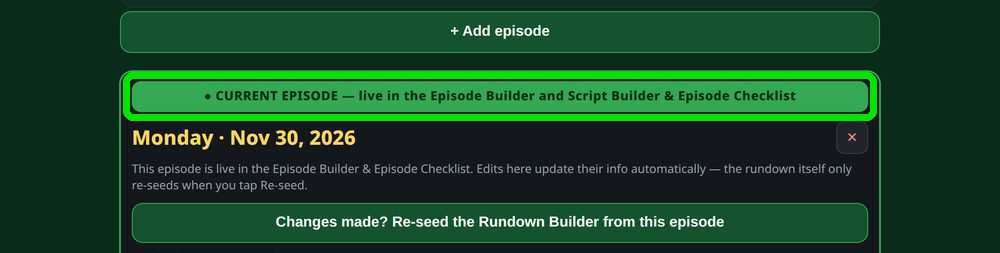
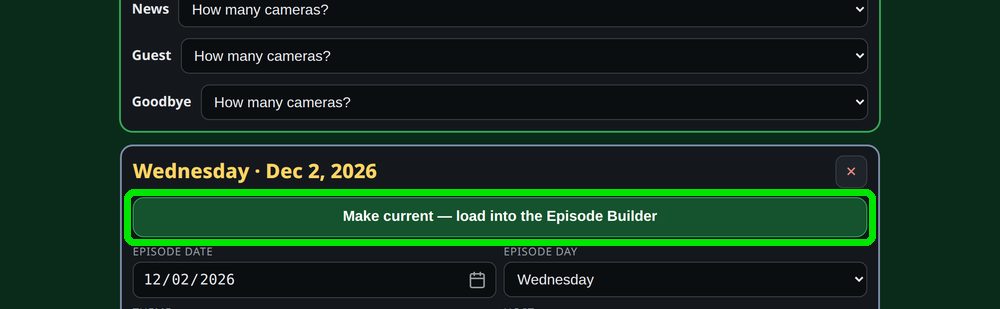
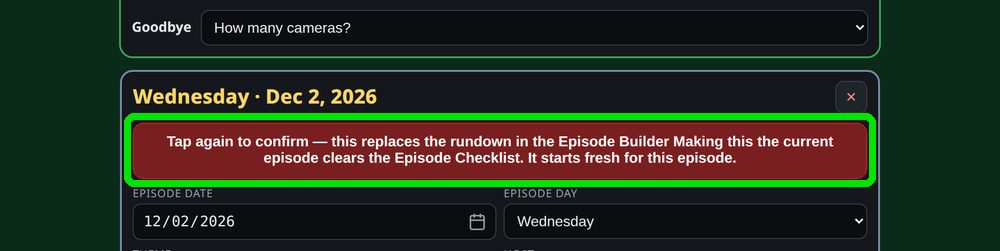
- If the wrong episode is marked as current, tap Make current on the right episode. Two taps — it asks once, to be sure.
Note: Changes made in the Episodes Calendar save automatically
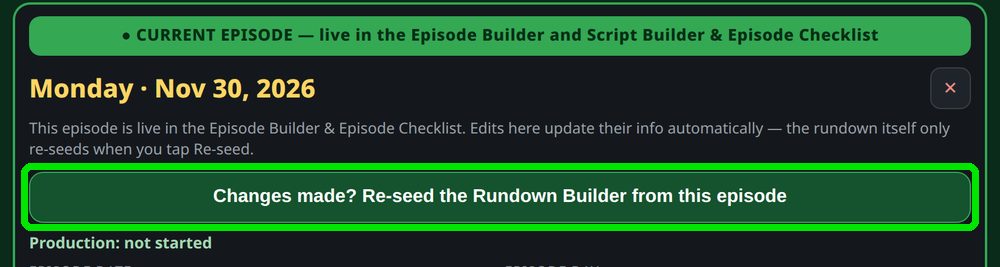
IMPORTANT: Changes made to the CURRENT episode do NOT automatically re-seed the Episode Rundown Builder.
See the "Additional Process Information" Sections at the end of this guidebook.
Jump to Additional Process Information ↓
You can also work ahead on future episodes. See the "Additional Process Information" Sections at the end of this guidebook.
Build the Rundown
- Open the Episode Rundown Builder.
- Be sure to adjust the current production status of all applicable elements as you work so other crew members know where things stand.

IMPORTANT: the Script Builder, the Episode Checklist and the Teleprompter all build from this rundown.
Get the Episode Ready
- Open the Episode Checklist, select your job and complete each line item.

- As each is completed mark it in its RIGHT-side checkbox. The left-side checkbox is for the Episode Director only.

- Finish early? Help someone else with their job.
NOTE: Steps 4–7 happen as part of this step. They may happen simultaneously.
Finish the Script
This step is part of Step 3. Steps 4–7 may happen simultaneously.
- Open the Script Builder.
- Pick today's episode in the EPISODE picker dropdown menu.

- Complete the script. It saves as you go. The "Save Script" button is there if you want to be sure.

- Saving takes a few seconds. When the top of the Script Builder shows saved, everything is in.

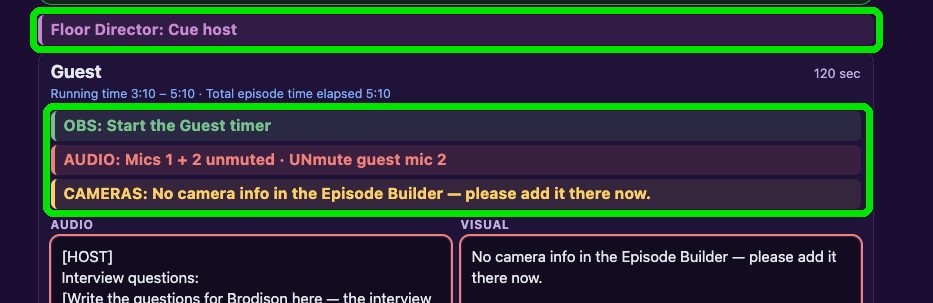
NOTE: Each segment carries three colored cue lines, always in the same order — OBS (green), AUDIO (red), CAMERAS (amber). A live segment also gets a purple Floor Director cue above it.
Upload the script
This step is part of Step 3. Steps 4–7 may happen simultaneously.
- Click Upload to Teleprompter.

IMPORTANT: Upload only after the script shows saved.
Verify the Teleprompter's Script
This step is part of Step 3. Steps 4–7 may happen simultaneously.
- Open the Teleprompter.
- The banner must show today's episode.
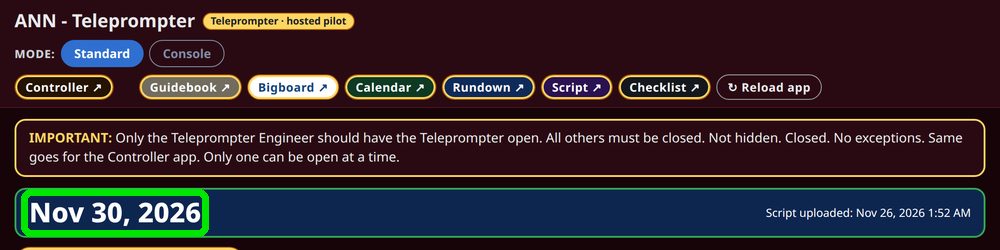
- Find the upload time stamp, to the right of the Episode date.

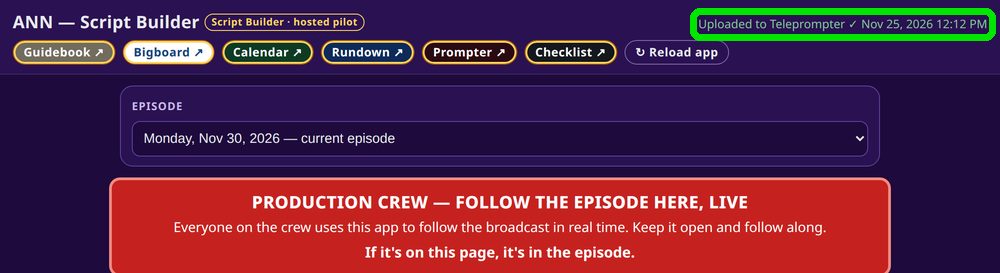
- It must match the time stamp in the upper right corner of the Script Builder.
- Go back a step and redo the upload.
- Use the Teleprompter's Force upload button — but the Script Builder has to be open on the current episode for it to work.
- Setting the Mode must be done after the script import is verified. Never before.
IMPORTANT: Only the Teleprompter Engineer should have the Teleprompter open. All others must be closed. Not hidden. Closed. No exceptions. Same goes for the Controller app. Only one can be open at a time.
Set the Teleprompter Mode
This step is part of Step 3. Steps 4–7 may happen simultaneously.
- Standard — the host Teleprompter view only.
- Console — the host Teleprompter view AND the crew script view.

- The Teleprompter Engineer controls the scroll rate of both modes.
- In Standard mode the Teleprompter does not display a crew view, so crew members must display and scroll their own view during the broadcast.
- In Console mode the two views (crew and host) are sync'd, even when the host view has fewer elements than the crew view.
IMPORTANT: setting the Mode must be done after the script import is verified. Never before.
During a mode change, the 'script hasn't been uploaded yet' warning may briefly appear. If it does not clear on its own re-upload the script from the Script Builder.
Verify All "Before the Cue-to-Cue" Items Have Final Confirmation on the Episode Checklist
- Open the Episode Checklist.
- Final Confirmation means the Episode Director has marked the left-side box.
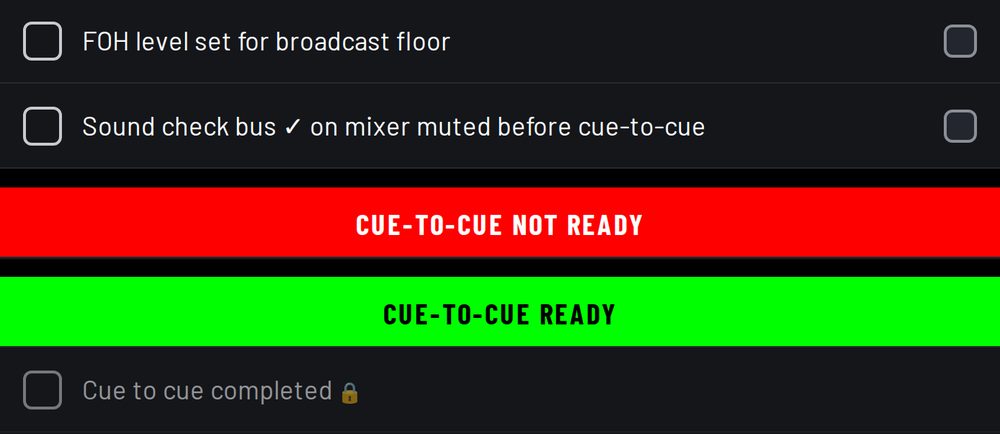
NOTE: The CUE TO CUE band reads "Cue-to-cue ready" in green only when everything has final confirmation.
Run the Cue-to-Cue
- Take note of any changes, additions, or deletions, needed as well as any errors that require clarification.
- This should only be done by the Episode Director or Executive Producer.
Address Issues That Arose During the Cue-to-Cue
IMPORTANT: Any cuts will require a change to the rundown, script and a reupload to the Teleprompter.
NOTE: the Episode Director or Executive Producer may decide to cut a segment from the episode if time will not allow for a viable correction.
Verify All "After the Cue-to-Cue" Items Have Final Confirmation on the Episode Checklist
- Final Confirmation means the Episode Director has marked the left-side box.
IMPORTANT: Any cuts or changes made in step 10 must also have confirmation. These may not have corresponding checkboxes due to time or circumstance but each must still be accounted for. (We don't have a process for this yet.)
NOTE: The episode's broadcast status band reads "Episode is ready for broadcast" in green only when everything has final confirmation.
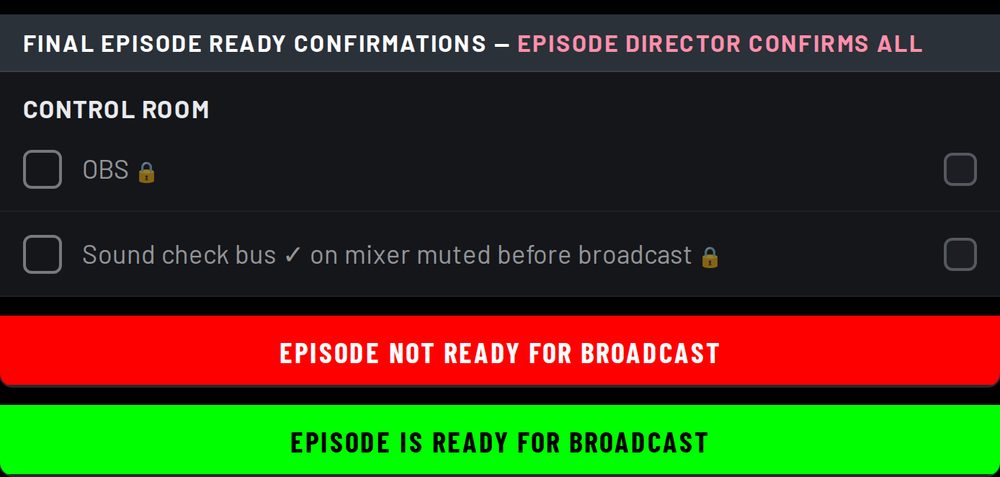
Broadcast the Episode.
All cues must be called and all by the Episode Director.
Additional Process Information
Making Changes to an Episode
- You can make changes to the episode in the Episodes Calendar — they save automatically.
- If the rundown needs to change too, tap Re-seed on the current episode — that rebuilds the Episode Rundown Builder from the calendar.
- Re-seed replaces the rundown — changes made in the Episode Rundown Builder are lost.
Working Ahead on a Future Episode
- The Episode Rundown Builder and the Script Builder have a EPISODE picker — pick a future episode and build its rundown or its script ahead of time.

- An amber banner reads "Working ahead — this is NOT the current episode" the whole time you're on a future episode.

- Working ahead never changes the current episode.
- Upload to Teleprompter works only on the current episode — a future episode's script can't be uploaded until that episode is made current.
- When that episode is made current, the rundown and script you built ahead come with it.
- The Episode Checklist exists only for the current episode — there's no checklist to work ahead on.